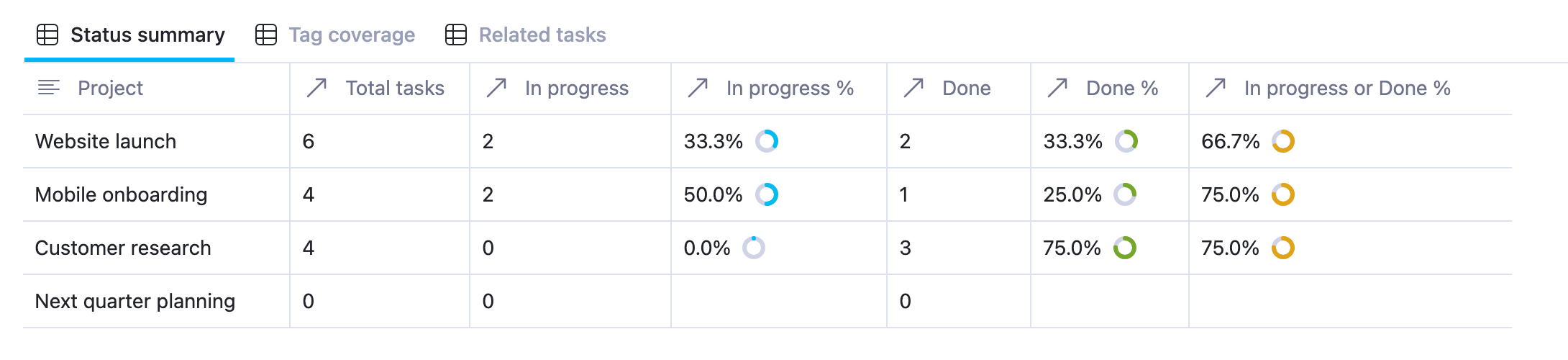
A useful project tracker should answer two everyday questions: How much work is finished, and how much have we spent? Those answers become easier to trust when they come from the individual tasks and expense records your team maintains.
These two free AppFlowy templates connect a project overview to a separate source database. Check a task as done to update completion. Change an expense amount to update spending, the remaining balance, and budget status.
| Template | Source database | What the project overview shows |
|---|---|---|
| Project Completion Tracker | Project Checklist Tasks | Total, completed, and remaining tasks; completion percentage |
| Project Expense Tracker | Project Expenses | Spending, remaining budget, budget usage, and a status label |
Each template is a separate pair of linked databases. You can use either one on its own. If you copy both, their project lists remain separate until you choose to reorganize them.
The setup uses relations to connect records, rollups to read values from related records, and formulas to calculate the project summary. AppFlowy does not currently support direct related-record access through
current.prop(...); there is a working alternative for each example below.Count completed tasks with a project checklist
Start with the Project Completion Tracker template. Select Use this template and choose your workspace and space. The copy includes the project overview and its related task database.
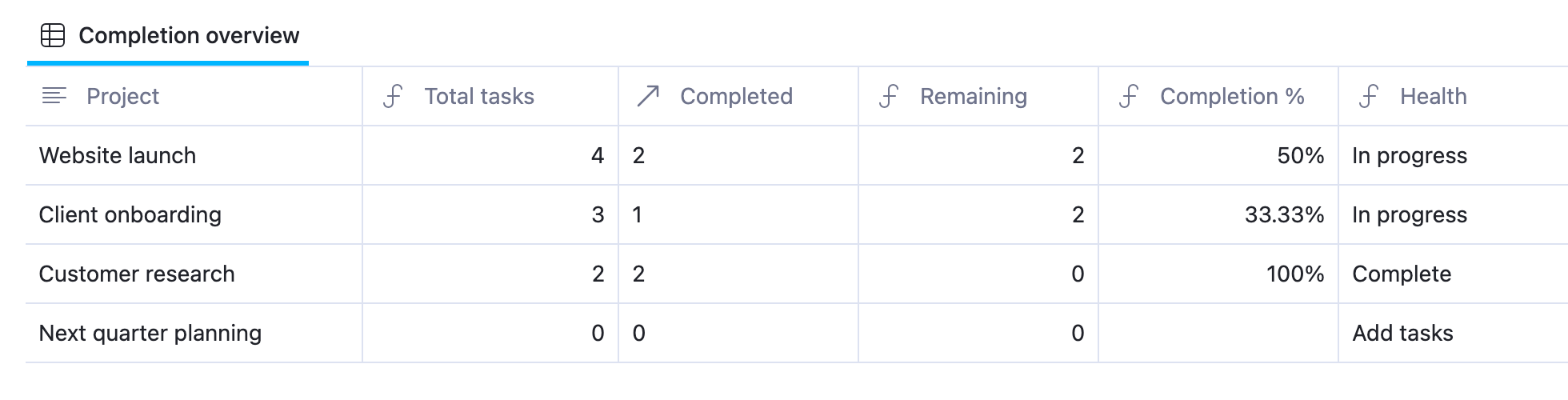
The sample Website launch project has four tasks. Two are checked Done, so the overview shows 2 Completed, 2 Remaining, and 50% completion.
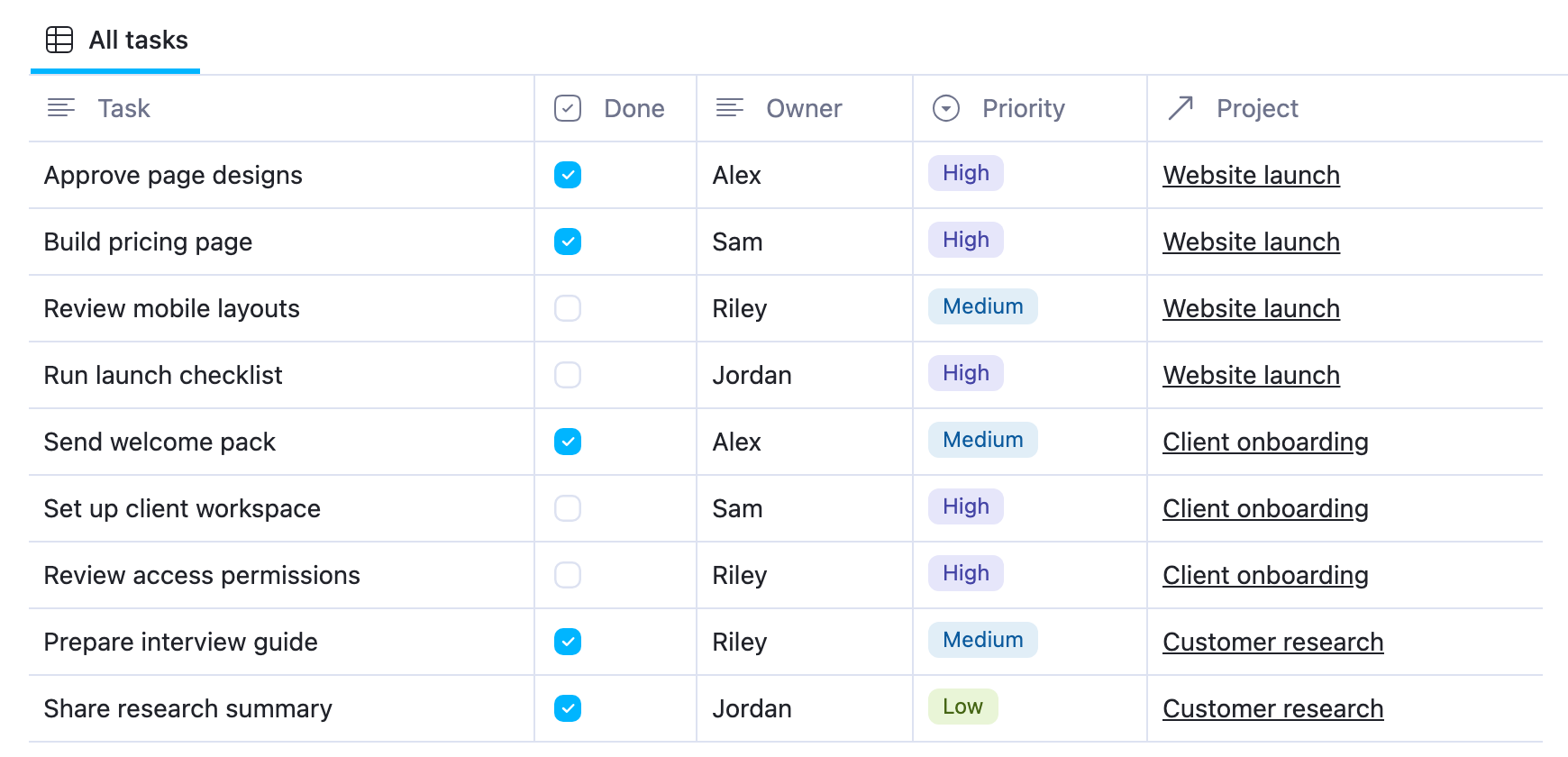
In Project Checklist Tasks, replace the examples with your own work. Each task has a Done checkbox, an Owner text property, a Priority select property, and a Project relation. Select the project through the relation; typing its name into an ordinary text property will not link the records.
Inspect the completed-task rollup
Open the Completed column menu in the project overview and select Edit property. Its Rollup settings are:
| Setting | Value |
|---|---|
| Relation | Tasks |
| Property | Done |
| Calculate | Count checked |
This counts checked Done values among the tasks linked to that project. It does not count unrelated tasks elsewhere in the database.
The Total tasks property is a Formula. Counting the relation itself is supported directly:
1prop("Tasks").length()The Remaining formula subtracts the completed count:
1prop("Total tasks") - prop("Completed")For Completion %, use this formula and set its number format to Percent:
1if(2 prop("Total tasks") == 0,3 empty(),4 prop("Completed") / prop("Total tasks")5)The formula returns a ratio. For two of four tasks, it returns
0.5, displayed as 50%. Do not multiply the result by 100 when using Percent formatting.The zero-task check keeps an empty project from dividing by zero. Next quarter planning therefore shows zero task counts, a blank completion percentage, and Add tasks in the Health column.
Test a task update
In your copy, find Review mobile layouts and check Done. Website launch changes to 3 Completed, 1 Remaining, and 75% completion. Uncheck it to restore the sample.
Each task has equal weight. Completing a short task contributes as much as completing a long one. Use this percentage to report checklist completion, not the share of effort spent or the time remaining. It works well for launch checklists, onboarding steps, release reviews, and recurring project work.
Sum project expenses from a linked database
Open the Project Expense Tracker template and select Use this template. This pair contains a project budget overview and a separate Project Expenses database.
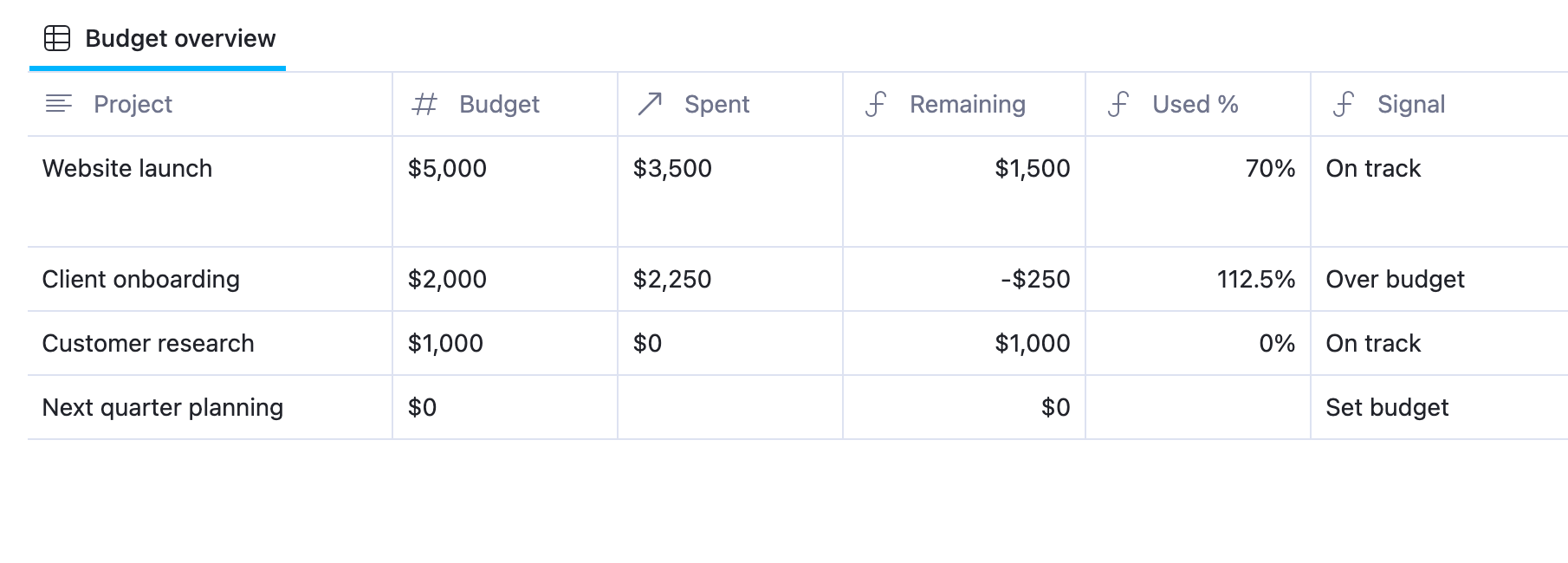
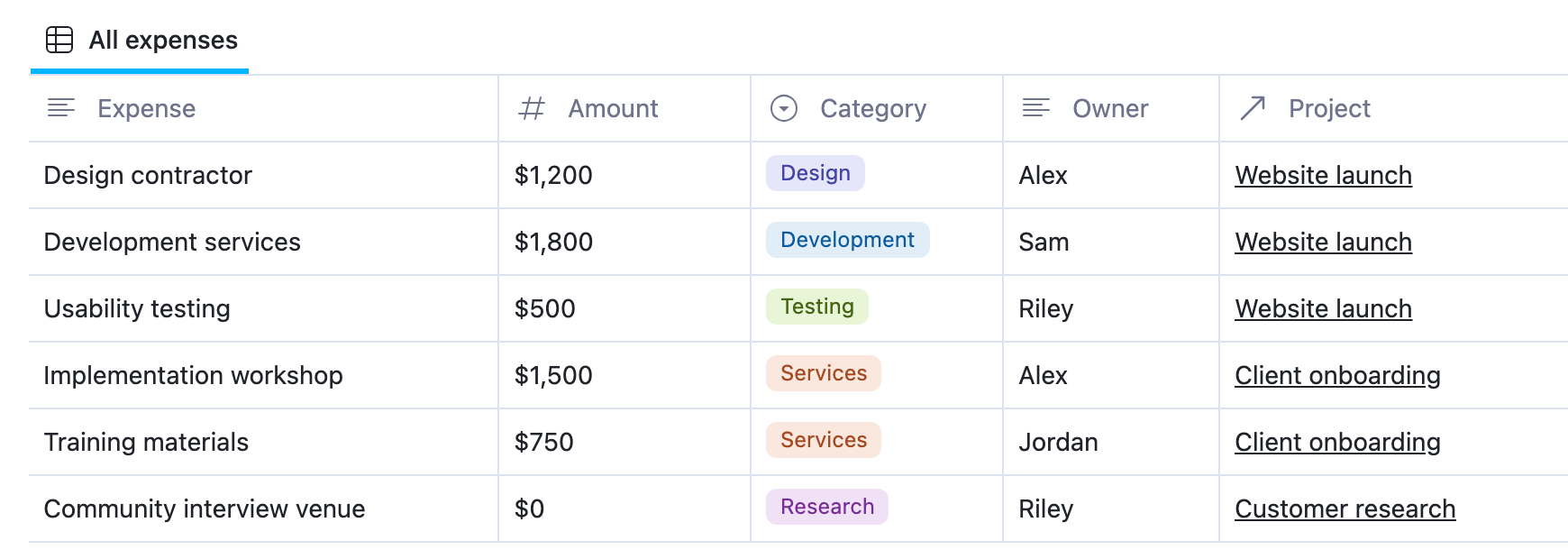
Website launch has a $5,000 budget and three linked expenses: $1,200 for design, $1,800 for development, and $500 for testing. Its overview shows $3,500 Spent, $1,500 Remaining, and 70% Used.
In Project Expenses, each record has an Amount number property, Category, Owner, and Project relation. Add each cost once and assign it to the appropriate project. The overview totals the linked amounts rather than requiring you to re-enter a spending total.
Inspect the spending rollup
Open the Spent column menu and select Edit property. Its settings are:
| Setting | Value |
|---|---|
| Relation | Expenses |
| Property | Amount |
| Calculate | Sum |
The Remaining formula subtracts the rollup from the budget. It treats blank spending as zero:
1prop("Budget") - if(empty(prop("Spent")), 0, prop("Spent"))For Used %, keep the Formula number format set to Percent:
1if(2 prop("Budget") <= 0,3 empty(),4 if(empty(prop("Spent")), 0, prop("Spent")) / prop("Budget")5)The Signal formula labels a project Watch from 80% spent, Over budget when spending exceeds its budget, and Set budget when the budget is zero or negative. Otherwise, it shows On track. These thresholds are editable choices in this template.
With no linked expenses, Spent is blank. Remaining treats that as zero spending. A recorded expense of zero is different: Customer research has a $0 expense and displays $0 Spent. Enter actual amounts so an incomplete expense record does not look like a complete cost report.
Test an expense update
In your copy, change Usability testing from $500 to $1,250. Website launch updates to $4,250 Spent, $750 Remaining, 85% Used, and Watch. Restore $500 when you finish testing.
The samples use US dollars. Keep Budget and Amount in one consistent currency. Changing a number's display format does not convert its value into another currency.
Can a formula read another database without a rollup?
In the current AppFlowy formula engine, a Relation property becomes a list of related row titles. You can count the list with
.length() or work with those title strings. It does not expose each related row as an object with its own properties.For example, this supported expression counts linked tasks whose titles contain “Review”:
1prop("Tasks").filter(current.contains("Review")).length()It checks the task title, not its Done checkbox, Priority, or other properties.
These two direct related-property expressions are not currently supported in AppFlowy:
1prop("Tasks").filter(current.prop("Done") == true).length()2prop("Expenses").map(current.prop("Amount")).sum()The limitation is access to the related record through
current.prop(...); filter() and map() themselves are supported list functions. Use Count checked on Done for the first outcome, and Sum on Amount for the second. A Formula can then use those rollup results, as both templates demonstrate.Keep the project summary accurate
When a result looks wrong, check the source records before changing the formula:
- Missing task or expense: Confirm its Project relation points to the intended project. A matching text label is not enough.
- Completed count looks low: Check the actual Done checkbox on each related task.
- Spending looks low: Check that every expense has an Amount and the correct Project relation. Look for missing or duplicated entries.
- Blank percentage: Check for zero tasks or a budget of zero. Those cases intentionally leave the percentage blank.
- Formula error after editing properties: Inspect the formula's property references and the rollup's Relation and Property settings.
Start with the task completion template for checklist progress, or the project expense template for budget versus actual costs. Replace the sample records, test one change, and use the overview in your next project check-in.