A project progress tracker should answer three questions: How many tasks are done? What percentage is still in progress? Which tasks need help? Those answers should come from the task list your team already updates.
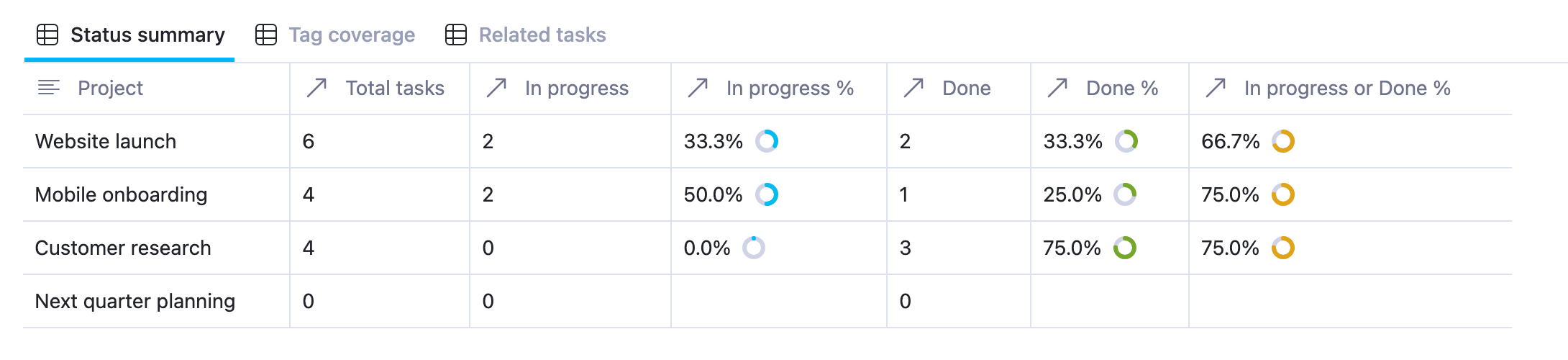
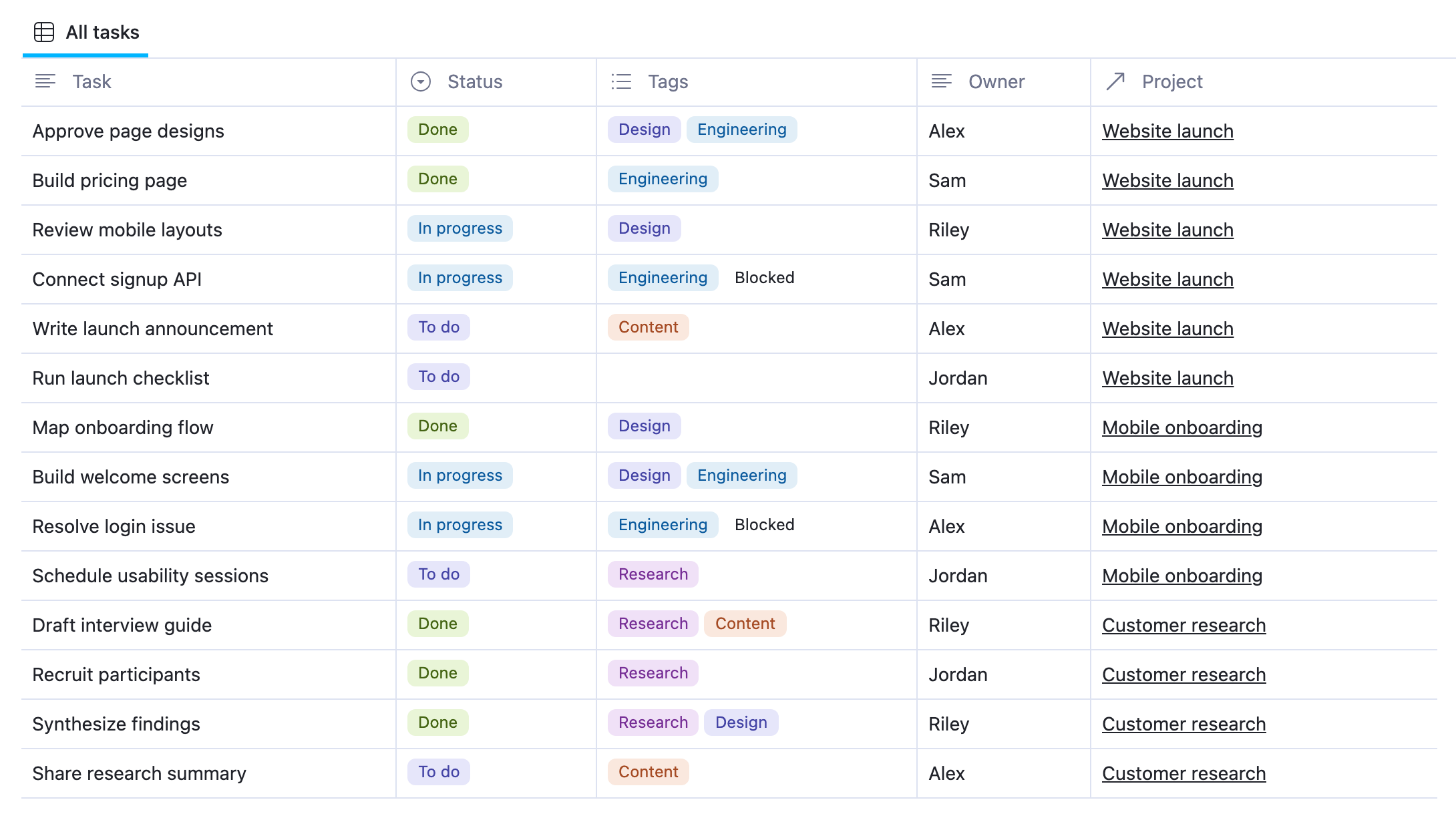
This free template uses two linked databases in AppFlowy. Project Tasks holds each task's status, tags, owner, and project. Project Task Progress counts the related tasks and calculates percentages automatically with rollup properties. It includes four sample projects, fourteen tasks, and three views for checking status, tags, and the underlying task links.
Use the free Project Progress Tracker template, or preview the project summary and related task database first.
How to calculate project completion percentage
For a tracker that gives every task equal weight, use:
1Project completion percentage = completed tasks ÷ total related tasks × 100If two of six tasks are Done, the project is 33.3% complete by task count. If three of four tasks are Done, it is 75% complete.
The template also shows In progress % and In progress or Done %. Keep these measures distinct:
| Measure | What it tells you | Website launch example |
|---|---|---|
| Done % | The share of related tasks that are finished | 2 ÷ 6 = 33.3% |
| In progress % | The share currently being worked on | 2 ÷ 6 = 33.3% |
| In progress or Done % | The share that has started or finished | 4 ÷ 6 = 66.7% |
The combined percentage is useful for seeing how much work has begun. Use Done % when reporting completion.
Task count is a simple measure, but a one-hour task and a five-day task each count as one. Treat the result as task completion, not a measure of effort, budget consumed, or time remaining. Keep task sizes reasonably consistent when comparing projects.
Start with the two linked databases
On the template listing, select Use this template, sign in if prompted, and choose your destination workspace and space. The copy includes the project tracker and its related task database.
Replace the sample projects and tasks with your own work. Keep the existing property types so the rollups can read the inputs:
| Property in Project Tasks | Type | What to enter |
|---|---|---|
| Task | Text | A specific piece of work, such as Review mobile layouts |
| Status | Select | To do, In progress, or Done |
| Tags | Multi-select | Labels such as Design, Engineering, Research, Content, or Blocked |
| Owner | Text | The person responsible for the task |
| Project | Relation | The project this task belongs to |
Status is a single choice because a task should have one current workflow state. Tags allow several choices: an engineering task can also be blocked, and a task can involve both Design and Engineering.
The relation connects the databases. Each task points to one project, and each project can link to several tasks. Naming a project in a text field does not create that link; select it in the Project relation.
Use three views for different project check-ins
Open Project Task Progress and choose the view that answers your question:
- Status summary shows total tasks, counts and percentages for In progress and Done, and the combined percentage. Progress rings make the percentage columns easier to scan.
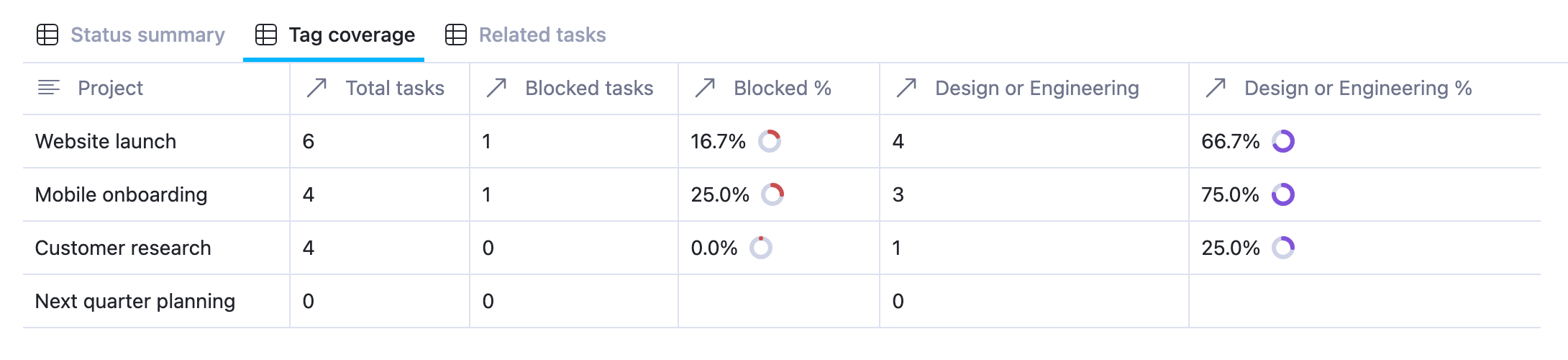
- Tag coverage shows blocked work and the number and percentage of tasks tagged Design or Engineering.
- Related tasks shows the task links behind each project. Open a linked task to inspect or update its properties.
For a weekly project review, start with Status summary. If a project has many tasks in progress but few completed, use Related tasks to see the actual work. Then check Tag coverage for blockers that may explain the gap.
Count related tasks by status with a rollup
A rollup reads a property from records linked through a relation, then summarizes those values. In this template, it follows the project's Tasks relation and reads each task's Status.
To inspect the completion percentage, open the Done % column menu and select Edit property. The settings are:
| Rollup setting | Choose |
|---|---|
| Relation | Tasks |
| Property | Status |
| Calculate | Percent values |
| Value | Done |
For a count instead of a percentage, use Count values. The template's Done column uses that calculation with the same relation, property, and value.
To create your own rollup, add a property, choose Rollup, and configure those settings. Repeat with In progress as the Value to track active work. AppFlowy's native calculations handle this example without a custom formula.
The denominator is all tasks linked to that project. A linked task with an empty Status still belongs to the total but does not match Done. Keep statuses up to date so the percentage represents the work accurately.
Match more than one select or multi-select option
Sometimes a single status or tag is too narrow. For In progress or Done %, the rollup selects both values from Status. A task matches if its status is In progress OR Done.
The same rule works with multi-select tags. In Tag coverage, Design or Engineering % reads the Tags property and matches either selected tag.
For Website launch, four of six tasks have Design, Engineering, or both. The result is 66.7%. Approve page designs has both tags, but it counts only once.
Use this for cross-team work, review queues, or tasks carrying several labels. These rollups match any selected option; selecting Design and Engineering does not require a task to have both.
For blocker tracking, select only Blocked. Add that tag when work needs help and remove it when the blocker is resolved. The template reports the current tag, so a completed task still counts as blocked if its Blocked tag remains.
Test the tracker with one task update
Before using the template for a team report, try this in your own copy:
- Open Website launch in Related tasks and find Review mobile layouts.
- Change its Status from In progress to Done.
- Return to Status summary.
Done increases from 2 to 3, and Done % changes from 33.3% to 50.0%. In progress falls from 2 to 1, or 16.7%. Total tasks stays at six, and the combined In progress or Done % stays at 66.7%.
This check confirms both the relation and the status rollups. You can then restore the sample status or replace the example with your own work.
Fix unexpected counts or blank percentages
Total tasks is zero. Open Related tasks and check the Tasks relation. A task needs an actual relation to the project to appear in its totals.
Done % is lower than expected. Check for tasks still marked To do, In progress, or left blank. All related tasks remain in the denominator.
A new status is missing from a rollup. Open Edit property and select the intended Value. Adding a new option does not mean every existing rollup should include it.
A project has blank percentages. The sample Next quarter planning project has no related tasks. It shows zero counts and blank percentages because there is no task total to divide by. Link its first task when planning begins.
Choose the right tracker for your workflow
This project status tracker works well when a team maintains individual tasks and wants project totals to follow those updates. Use it for product launches, client deliverables, onboarding, research, or internal projects.
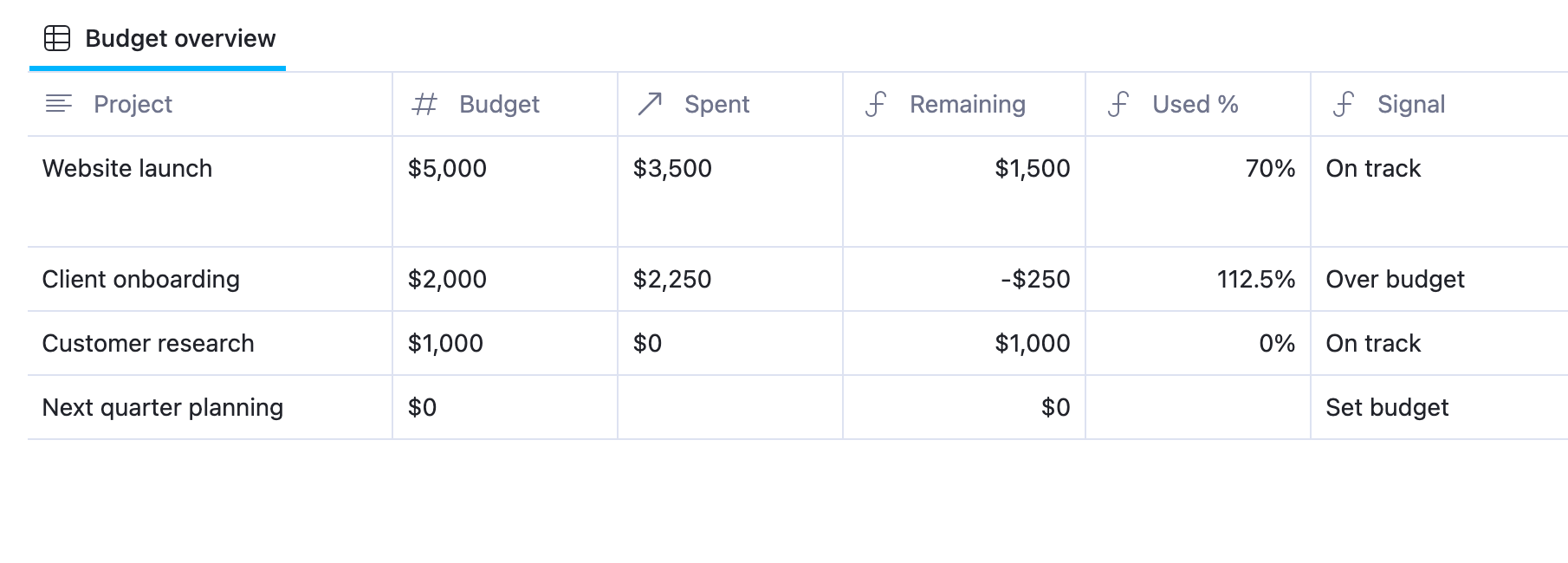
If you track planned and completed amounts such as story points, try the Sprint Progress template. For dates or costs, pair this tracker with Deadline Tracker or Project Budget.
Use the Project Progress Tracker template to start with the working relations and rollups, then replace the sample work with your team's tasks.