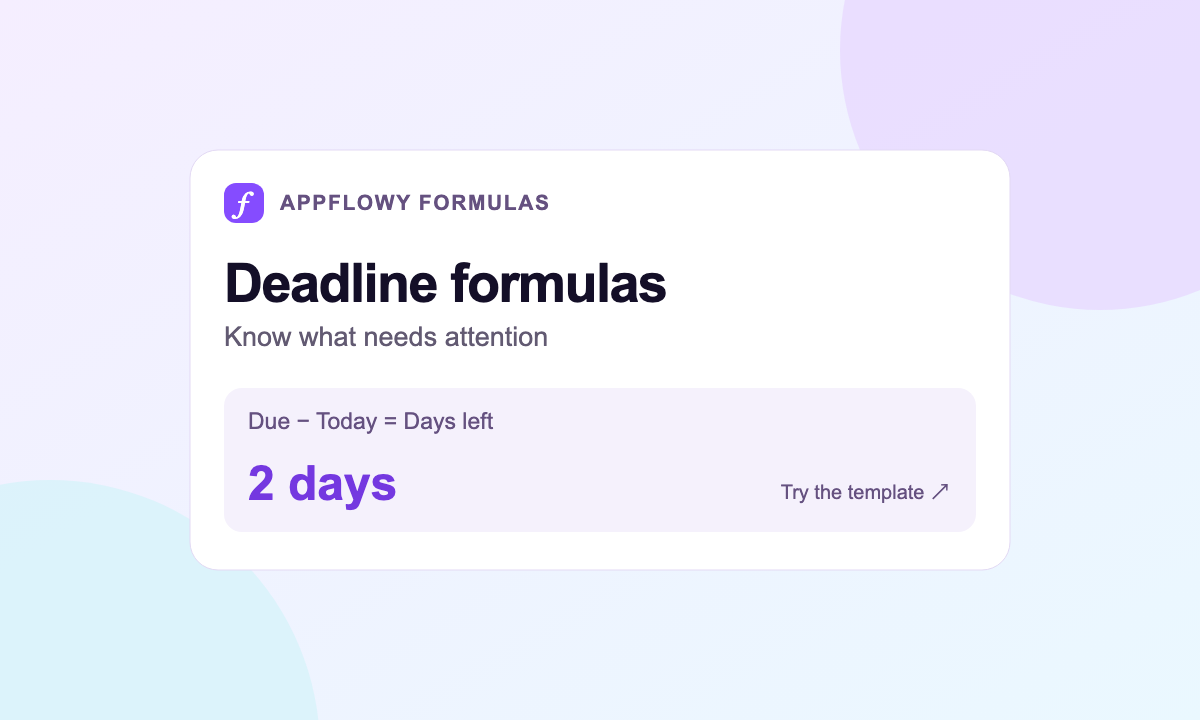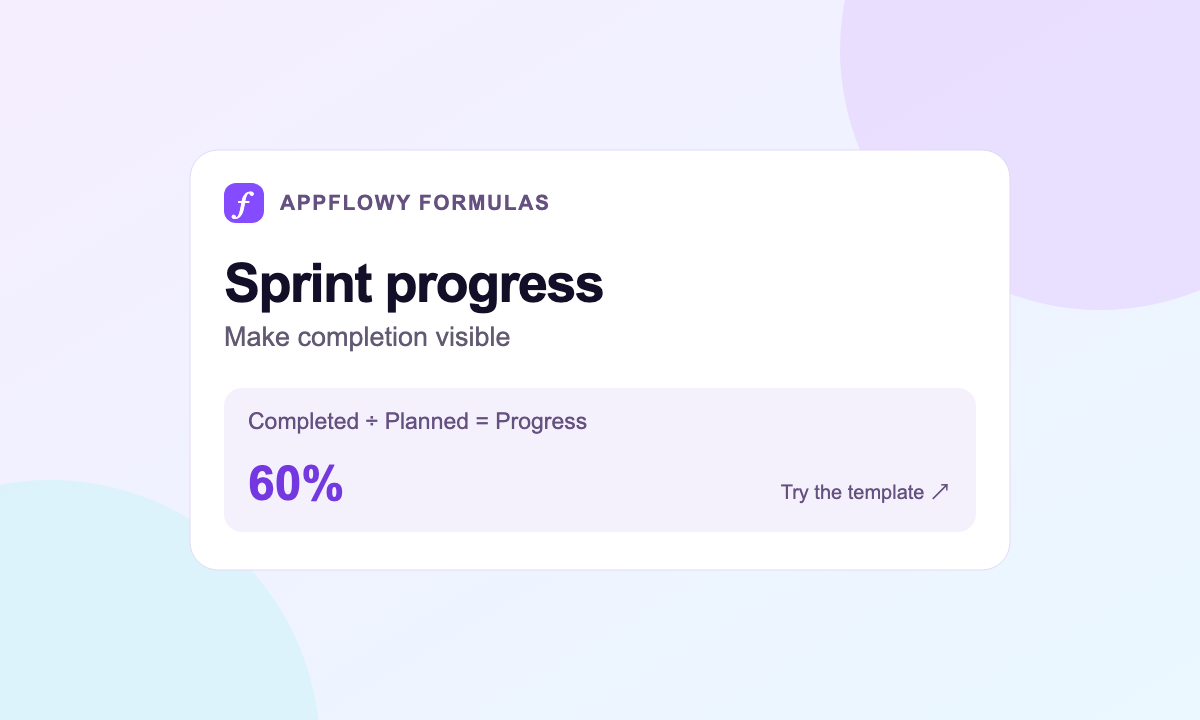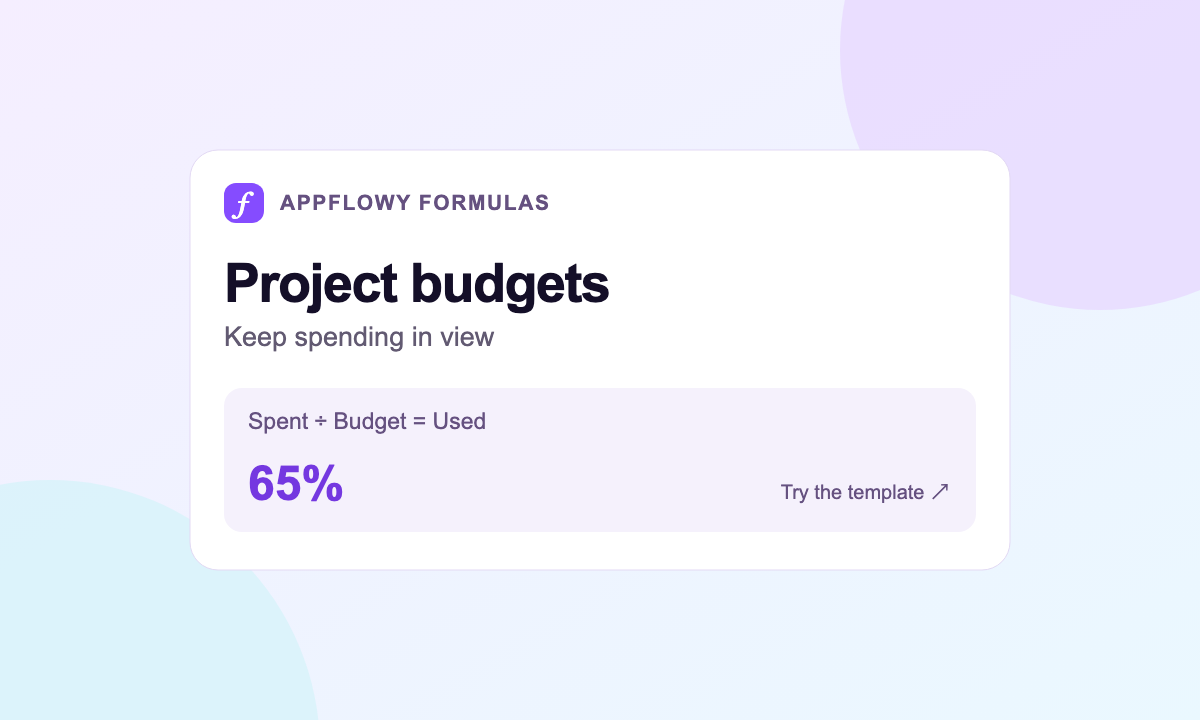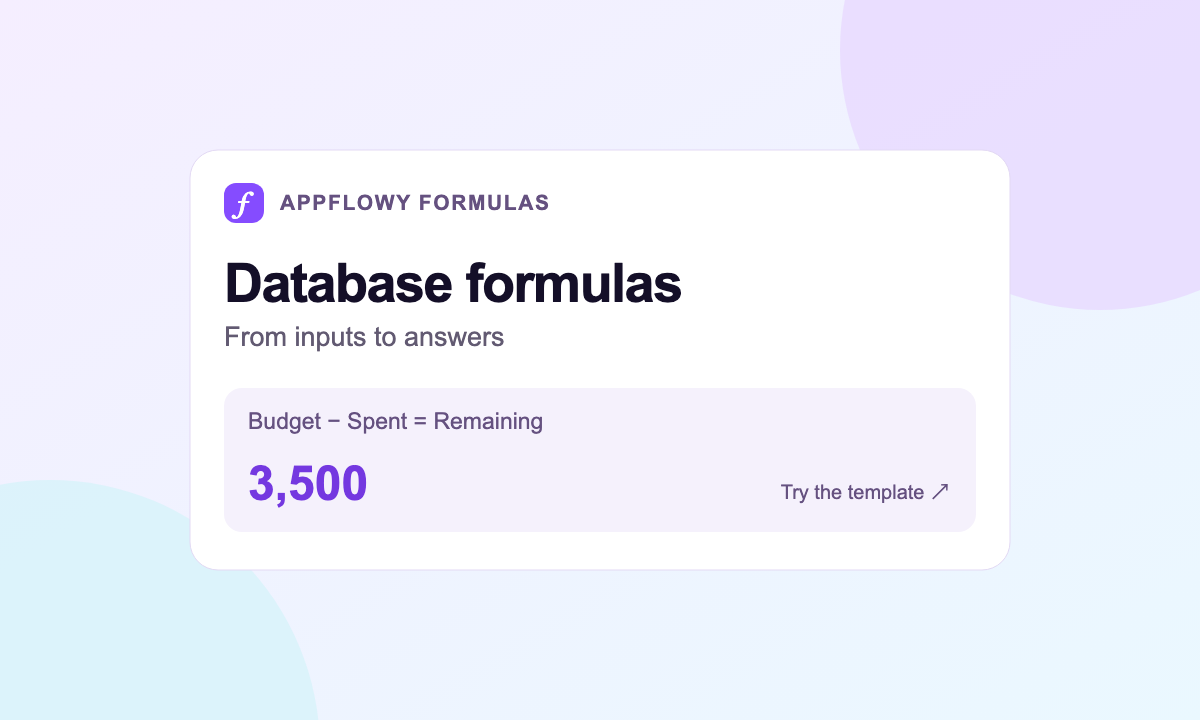
An AppFlowy database formula calculates a value from the other properties in each row. You can subtract spending from a budget, turn completed work into a percentage, or label a task overdue. Write the expression once, and the Formula property applies it across the database.
This guide starts with a simple budget calculation, then adds a check for missing inputs. You will learn the pieces of a formula, how to preview a result, and when to keep that result as a number rather than text.
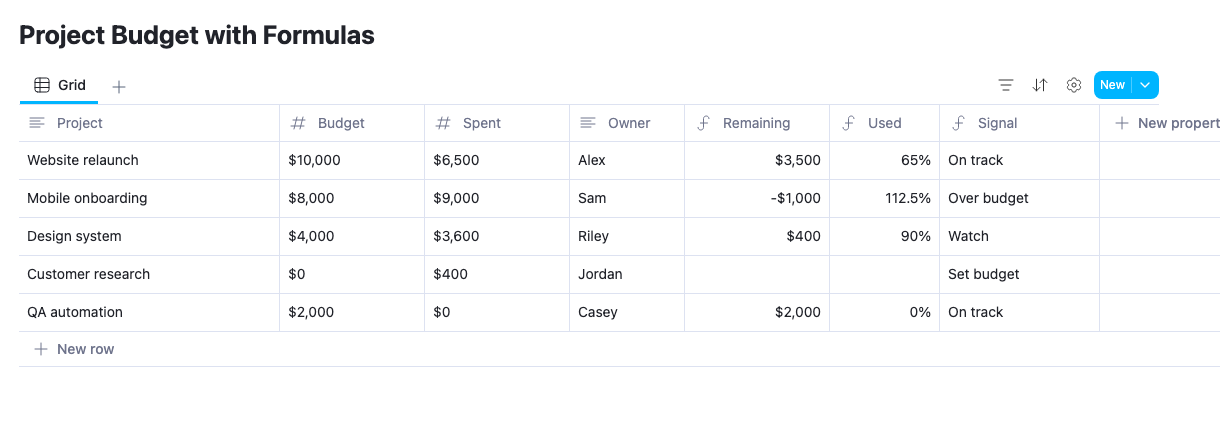
Start with a working example: open the Project Budget template or the Deadline Tracker template, then choose Start with this template to make your own copy in AppFlowy.
What can an AppFlowy formula do?
A formula combines property values, operators, and functions. It can return a number, text, a true-or-false value, a date, a list, or an empty result.
| Task | Inputs | Useful result |
|---|---|---|
| Monitor a project budget | Budget and Spent numbers | Money remaining |
| Track sprint completion | Planned and Completed numbers | Percent complete |
| Review upcoming deadlines | Due date and Done checkbox | Days left or a status label |
| Prioritize feature ideas | Reach, Impact, Confidence, and Effort | A RICE score |
The formula reads the current row. A formula cell displays its own calculated result; it does not change another property, send a reminder, or complete a task for you. For a calculation that needs values from related records, first configure an appropriate Rollup property, then reference that rollup.
Create your first Formula property
Open the Project Budget template to inspect its existing formulas. To practice adding one yourself, start a separate database with these properties:
| Property | Type | First sample value |
|---|---|---|
| Project | Text | Website relaunch |
| Budget | Numbers | 10000 |
| Spent | Numbers | 6500 |
Use Numbers properties for Budget and Spent. Text that looks like a number is still text, which can change how an expression is evaluated.
- Click New property at the right of the database.
- Open its property type menu and select Formula.
- Enter the expression below in the formula editor.
- Select the Website relaunch row in Preview with and check that the result is 3500.
- Click Done, then name the property Remaining through its property menu.
1prop("Budget") - prop("Spent")prop("Budget") reads the Budget value from the current row. The minus sign subtracts that row's Spent value. You do not need a leading = or a spreadsheet cell reference such as B2.Change Spent to 8500. Remaining becomes 1500. A second row with a budget of 8000 and spending of 9000 returns -1000, which makes the overspend visible.
Read the formula editor
The expression area is where you write the calculation. Use the property catalogue to insert a reference and the function catalogue to explore available functions. Referenced properties appear as chips in the editor.
The Type label tells you what the formula returns. Preview with lets you inspect another row before saving. Test a normal row, a row with zero spending, and a row without a budget. A calculation that looks right for one record can still mislead on another.
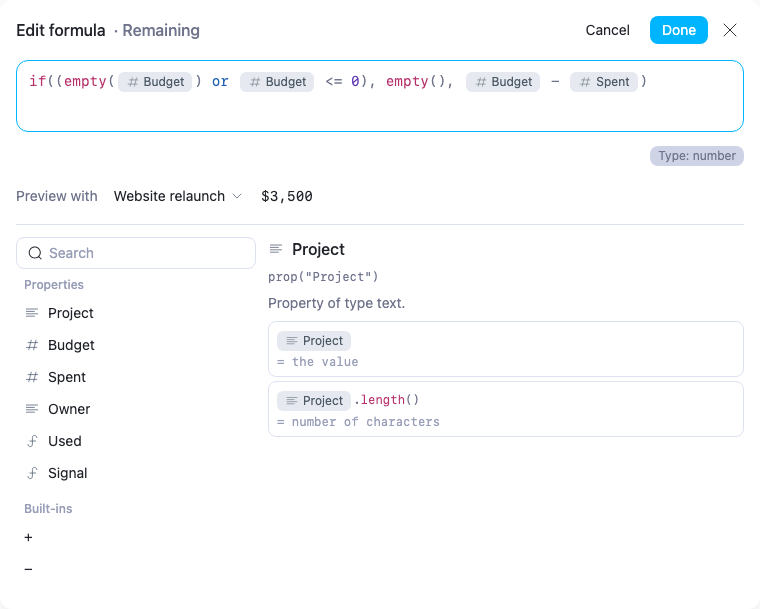
Click an existing formula cell to reopen its expression. Editing that expression changes the Formula property for every row. Choose Cancel to discard an unfinished edit.
Handle empty inputs before calculating
An unset budget should not look like a confirmed negative balance. The template uses this guarded version of Remaining:
1if(2 (empty(prop("Budget")) or prop("Budget") <= 0),3 empty(),4 prop("Budget") - prop("Spent")5)Read it in three parts:
- The condition checks whether Budget is empty or zero or less.
- If that condition is true,
empty()returns a blank result. - Otherwise, the formula subtracts Spent from Budget.
This template deliberately treats a nonpositive budget as a budget that still needs setting. If zero is a meaningful approved budget in your workflow, choose a different rule.
empty(value) treats values such as zero, false, empty text, and an empty list as empty. It is not a missing-value-only test. empty() with no argument produces an empty result, which is useful when the other branch returns a number or date.Keep zero spending valid: a project with a $2,000 budget and no spending has $2,000 remaining. The formula guards Budget, not Spent.
Format the result without changing its type
Open the Formula property's Edit property menu and select a Number format to display Remaining as currency. The result stays numeric, so it remains useful for numeric sorting and further calculations.
A completion formula should usually return a ratio. For example,
12 / 20 returns 0.6; Percent formatting displays it as 60%. Returning 60 and applying Percent formatting displays 6000%.Use
format() when you want text for a sentence or label. For example, format(3500) converts the number to text. Keep the original numeric Formula property if you also need to calculate with it.Learn the syntax you will use most
| Syntax | What it does | Example |
|---|---|---|
prop("Name") | Reads a property in this row | prop("Spent") |
+, -, *, / | Performs arithmetic on numbers | prop("Budget") - prop("Spent") |
>, >=, == | Compares values | prop("Spent") > prop("Budget") |
if(condition, yes, no) | Chooses between two results | if(prop("Done"), "Complete", "Open") |
ifs(...) | Checks several conditions in order | Choose a project health label |
today() | Returns the current date | Compare a deadline with today |
Use straight quotation marks around text. Match property names and capitalization, or insert references from the catalogue. AppFlowy also offers date, text, list, and math functions for more detailed calculations.
Fix the most common first-formula mistakes
The property is not recognized. Reinsert it from the property catalogue. A misspelled name or a deleted property can break a reference.
The formula expects a number. Check the input property types. Use
toNumber() only when the source intentionally stores numeric text.The two outcomes have different types. If the normal result is numeric, return
empty() for a blank result rather than an empty text string.The formula divides by zero. Check the denominator before dividing. Missing or nonpositive targets need an explicit rule.
The result is correct but looks wrong. Review the number format and whether the expression returns text or a number.
Put the calculation to work
Use the Project Budget template for Remaining, spending percentage, and a budget signal. Use the Deadline Tracker template to see how the same conditional logic works with dates and checkboxes.
Next, follow the AppFlowy date formulas guide for deadline calculations, or build a sprint progress bar from a numeric completion ratio.