A project budget tracker should answer three questions quickly: how much money remains, what proportion has been spent, and which projects need a closer look. AppFlowy formulas can calculate all three from Budget and Spent number properties.
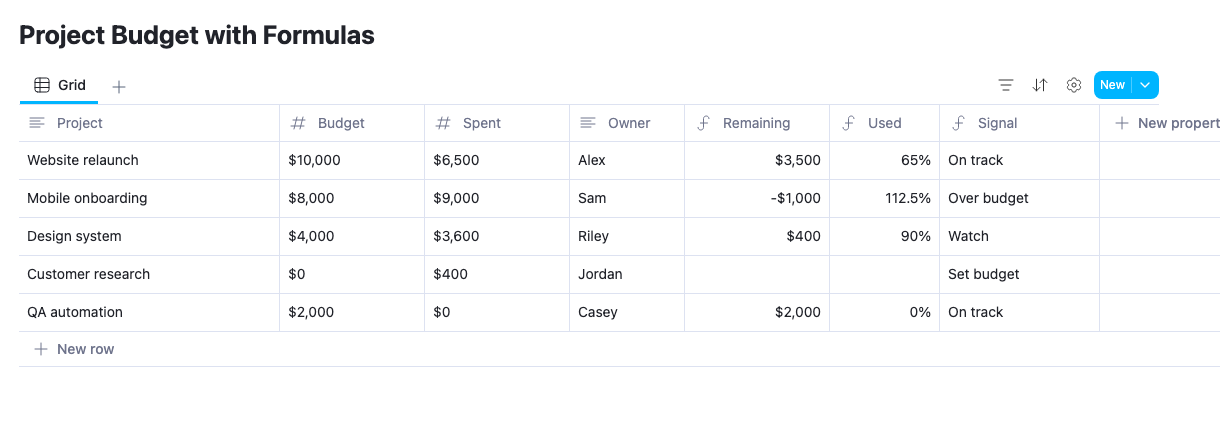
This guide builds Remaining, Used, and Signal. A project with a $10,000 budget and $6,500 spent shows $3,500 remaining, 65% used, and On track. Changing the spending input updates all three results.
Duplicate the Project Budget template to follow along. Pair it with the Deadline Tracker template when your project reviews need both cost and schedule information.
Define the budget inputs
| Property | Type | What to enter |
|---|---|---|
| Project | Text | A project or workstream name |
| Budget | Numbers | The approved amount |
| Spent | Numbers | The spending you want to compare against that amount |
| Owner | Text | The person maintaining the inputs |
| Remaining | Formula | Budget minus Spent |
| Used | Formula | Spent divided by Budget |
| Signal | Formula | A label based on your chosen thresholds |
Decide whether Spent means paid invoices, recognized costs, or costs including commitments. The formula will calculate the same way, but the result means something different under each convention. Use one convention consistently and record it in the database's instructions.
Keep a row's Budget and Spent in the same currency. The sample uses US dollars for display; formatting a number as dollars does not perform a currency conversion.
If you are new to the editor, follow the AppFlowy formula setup guide. For each calculation below, add a Formula property, enter the expression, check its row preview, and save it.
Calculate the remaining budget
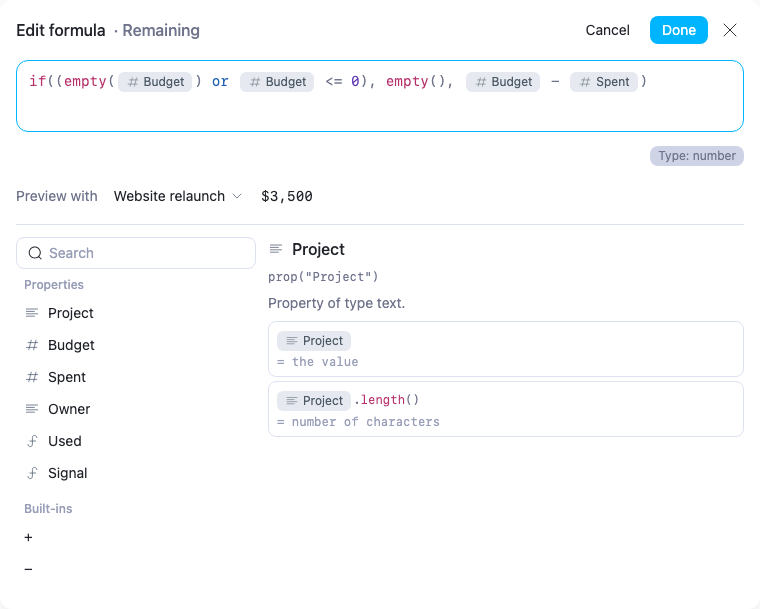
Use this expression for Remaining:
1if(2 (empty(prop("Budget")) or prop("Budget") <= 0),3 empty(),4 prop("Budget") - prop("Spent")5)The subtraction is straightforward. The condition before it prevents a missing or nonpositive budget from being presented as an approved budget balance.
Set Remaining's Number format to US dollar in the property menu. It stays a number, with currency formatting applied to its display.
Do not cap this result at zero. A negative balance is useful: Mobile onboarding has an $8,000 budget and $9,000 spent, so Remaining is -$1,000. Capping the balance would hide the size of that overspend.
Show the percentage spent
Use this expression for Used:
1if(2 (empty(prop("Budget")) or prop("Budget") <= 0),3 empty(),4 prop("Spent") / prop("Budget")5)Set its number format to Percent. For $6,500 spent against $10,000, the formula returns
0.65, which displays as 65%.Unlike a capped completion bar, this spending ratio should remain able to exceed 100%. Mobile onboarding returns
1.125, or 112.5%. That makes the overspend visible as a proportion as well as an amount.The guard checks the denominator before division. A missing or zero budget should not turn into a division error or an apparently meaningful spending percentage.
Avoid converting Used to text just to add a percent sign. The Percent format gives you the display while preserving a numeric value you can compare or sort.
Add a budget status signal
Use this expression for Signal:
1ifs(2 (empty(prop("Budget")) or prop("Budget") <= 0),3 "Set budget",4 prop("Spent") > prop("Budget"),5 "Over budget",6 prop("Spent") >= prop("Budget") * 0.8,7 "Watch",8 "On track"9)ifs() evaluates conditions from left to right. The template uses this policy:| Budget and spending | Signal |
|---|---|
| Budget is missing, zero, or negative | Set budget |
| Spent is greater than Budget | Over budget |
| Spent reaches at least 80% of Budget | Watch |
| Otherwise | On track |
The overspending condition comes before the 80% threshold. Otherwise, an over-budget project would match Watch first.
At exactly 100% spent, the signal remains Watch because Over budget uses
> rather than >=. Change that comparison if your process treats reaching the full budget as a different escalation point.The 80% threshold is an editable review rule. A project that has used 80% of its budget and finished 95% of its work may need a different discussion from one that has used 80% and finished 20%. Signal starts the review; it does not contain that missing delivery context.
Verify the five sample outcomes
| Project | Remaining | Used | Signal |
|---|---|---|---|
| Website relaunch | $3,500 | 65% | On track |
| Mobile onboarding | -$1,000 | 112.5% | Over budget |
| Design system | $400 | 90% | Watch |
| Customer research | Blank | Blank | Set budget |
| QA automation | $2,000 | 0% | On track |
Customer research has a zero budget, so the formulas ask for one to be set. QA automation has a valid $2,000 budget and zero spending. Its zero is a meaningful input, so the remaining balance is the full budget and Used is 0%.
This distinction is why the formulas guard Budget rather than treating every zero in the row as missing. If your workflow allows an approved budget of zero, adapt the rule and use a separate property to distinguish an unset budget from an intentionally zero one.
Test a live spending change
In Website relaunch, change Spent from 6500 to 8500. The three results become:
- Remaining: $1,500.
- Used: 85%.
- Signal: Watch.
Then change Spent back to 6500. There is no need to edit each result cell: they are calculated from the input. If a result does not behave as expected, open its formula and preview that row.
Check the input types first when troubleshooting. A text field containing
$6,500 is not equivalent to a Numbers property storing 6500 with currency formatting.Make the tracker part of a project review
Give each project's owner a clear update cadence for Spent and record the date or source of the latest figure in the row's page. A precise formula can still be out of date if its inputs have not been updated.
For a portfolio total, add the underlying budgets and spending amounts before calculating the overall ratio. An unweighted average of project percentages gives small and large budgets the same influence, which can be misleading.
Use the Project Budget template for cost reviews and the Deadline Tracker template for schedule reviews. For a delivery measure alongside both, follow the sprint progress formula guide.