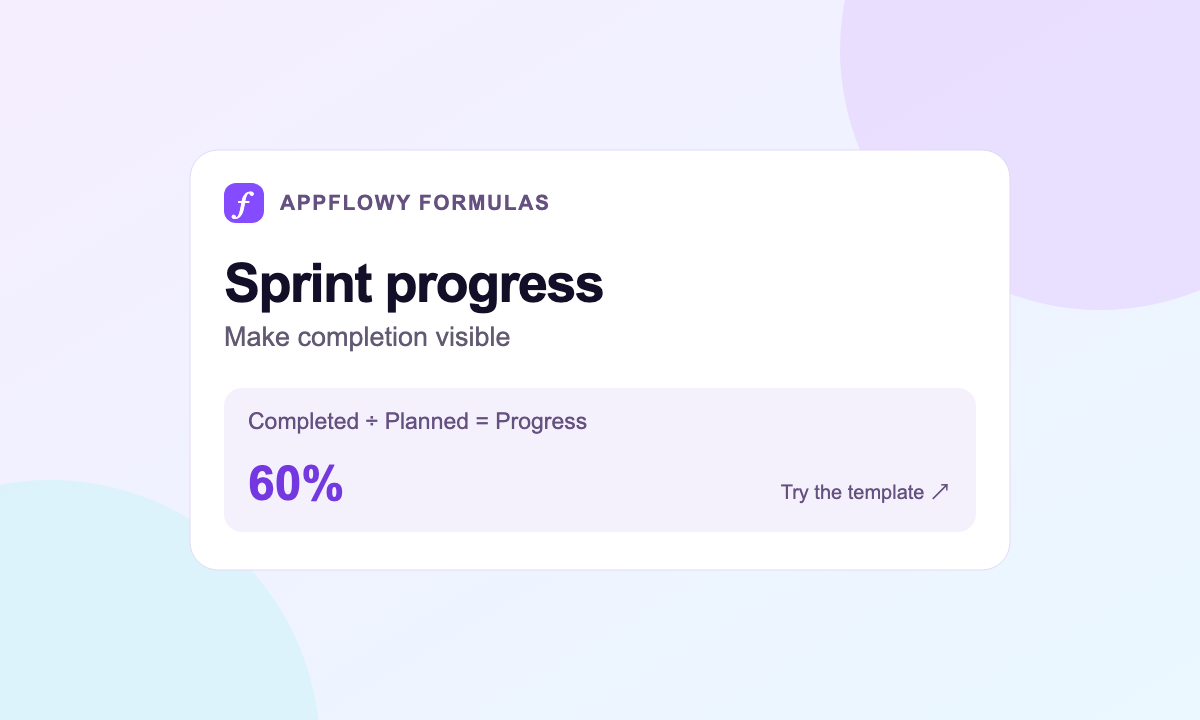
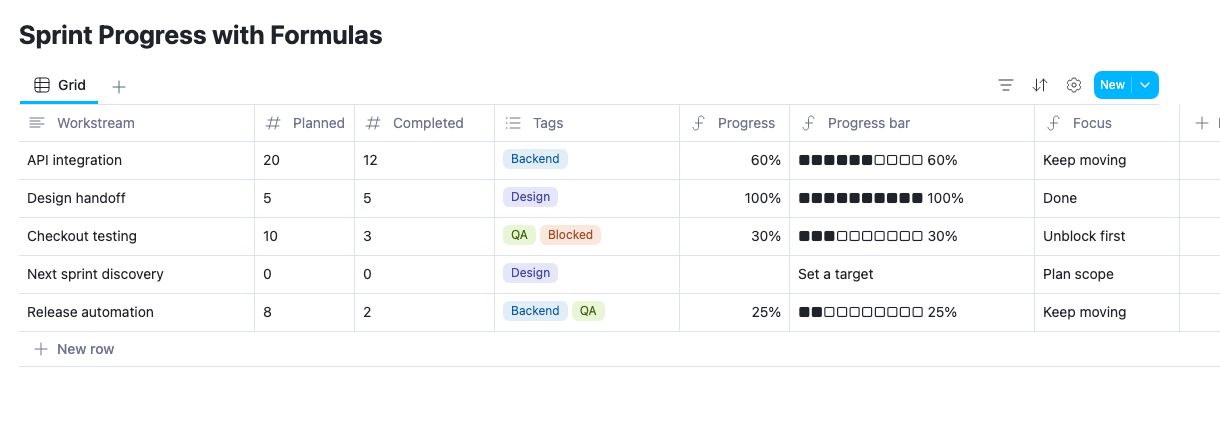
An AppFlowy progress bar formula turns a completion ratio into a visual indicator you can scan during a sprint review. With two number inputs, you can display 60%, draw six filled squares out of ten, and keep a separate label for blocked work.
This guide builds three Formula properties: Progress, Progress bar, and Focus. The numeric Progress result remains available for calculations, while the text bar makes it easier to read the table.
Duplicate the Sprint Progress template to use the finished setup. If you are still deciding which work belongs in the sprint, start with the RICE Prioritization template.
Choose what the numbers represent
Use one row for each workstream, goal, or deliverable you want to track. In the sample, API integration has 20 planned units of work and 12 completed units.
| Property | Type | Example |
|---|---|---|
| Workstream | Text | API integration |
| Planned | Numbers | 20 |
| Completed | Numbers | 12 |
| Tags | Multiselect | Backend, QA, or Blocked |
| Progress | Formula | 60% |
| Progress bar | Formula | Six filled squares and 60% |
| Focus | Formula | Keep moving |
Planned and Completed must use the same unit. You could count completed tasks, accepted story points, or reviewed deliverables. Counting tasks gives each task equal weight; it does not account for differences in their size.
Agree on what “completed” means before comparing rows. A workstream with 12 started tasks is not 60% complete simply because its target is 20 accepted tasks. Keep estimates and finished work distinct.
Calculate a safe completion percentage
Create Progress as a Formula property and enter:
1if(2 (empty(prop("Planned")) or prop("Planned") <= 0),3 empty(),4 min(1, max(0, prop("Completed") / prop("Planned")))5)The central calculation is Completed divided by Planned. The other parts make the result useful across more rows:
empty()and<= 0check for a missing or nonpositive target.empty()with no argument returns a blank result when there is no valid target.max(0, ...)prevents a negative percentage.min(1, ...)caps the displayed completion ratio at 100%.
In the property's Edit property menu, set Number format → Percent. The stored result
0.6 then displays as 60%. Do not multiply the Progress result by 100 before applying Percent formatting.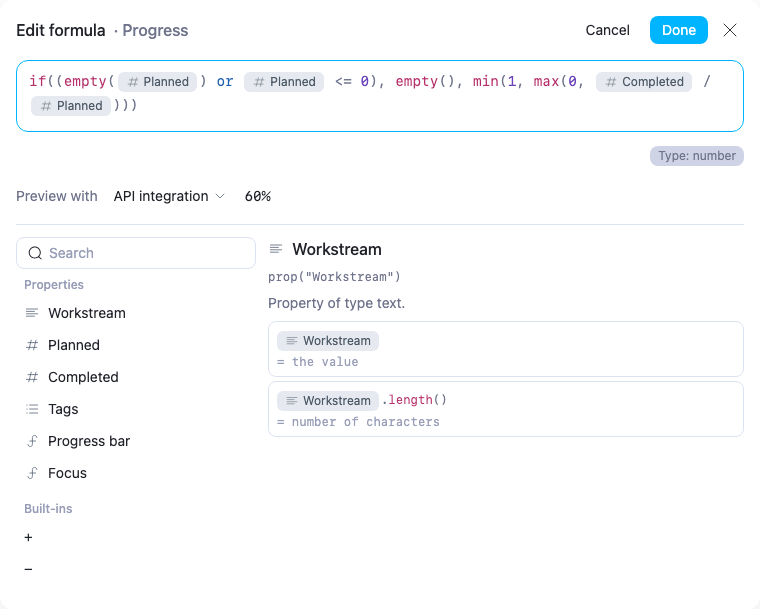
The cap is a presentation choice. If Completed is 24 and Planned is 20, this formula displays 100%. Keep the two input columns visible so readers can still see the overrun. Remove the cap if your workflow needs to show achievement above target.
Draw the progress bar
Create Progress bar after Progress, because the next expression references it:
1if(2 (empty(prop("Planned")) or prop("Planned") <= 0),3 "Set a target",4 lets(5 p,6 prop("Progress"),7 filled,8 floor(p * 10),9 repeat("■", filled) + repeat("□", 10 - filled) + " " + format(round(p * 100)) + "%"10 )11)lets() gives intermediate values short names. Here, p stores Progress and filled stores the number of filled squares.Multiplying the ratio by ten gives the number of squares to fill.
floor() rounds that count down. repeat() draws the filled and empty squares, and format(round(p * 100)) supplies the percentage label as text.For 60% completion, the result is:
1■■■■■■□□□□ 60%For 25%, the bar shows two filled squares while its label says 25%. A ten-square bar has ten-percentage-point steps, so the label is more precise than the drawing. That difference is expected.
The bar is a text formula made of characters. Keep Progress as the numeric property for comparisons and numeric sorting. Sorting the text bar itself does not provide the same numeric ordering.
Highlight blocked work before completed work
A bar cannot explain why progress has stopped. Add Focus with this formula:
1ifs(2 prop("Tags").includes("Blocked"),3 "Unblock first",4 (empty(prop("Planned")) or prop("Planned") <= 0),5 "Plan scope",6 prop("Completed") >= prop("Planned"),7 "Done",8 "Keep moving"9)includes("Blocked") checks whether the multiselect Tags list contains that label. ifs() gives the conditions a deliberate priority:| Condition | Focus |
|---|---|
| Tags includes Blocked | Unblock first |
| Planned is missing or nonpositive | Plan scope |
| Completed is at least Planned | Done |
| Otherwise | Keep moving |
Blocked work takes precedence even if the completion count meets the target. This can help surface a release dependency or final approval that still needs attention. Move the completion condition earlier if your team wants completed work to take precedence instead.
The formula does not remove Blocked from Tags or change another property. Someone still needs to update the inputs when the issue is resolved.
Test the result with the sample rows
Change API integration's Completed value from 12 to 16. Progress becomes 80%, and the bar fills eight squares. Restore 12 when you finish experimenting.
Check the other sample rows too:
- Design handoff: 5 of 5 produces 100% and Done.
- Checkout testing: 3 of 10 produces 30%, while its Blocked tag makes Focus say Unblock first.
- Next sprint discovery: a zero target leaves Progress blank, shows Set a target in the bar, and sets Focus to Plan scope.
- Release automation: 2 of 8 produces 25%, with two filled squares.
These cases test both the calculation and the words people will rely on in a review. Add another row with Planned left blank to confirm the same missing-target behavior.
Keep a sprint review honest
Changing Planned changes the percentage, even if Completed stays the same. If a workstream moves from 12 of 20 to 12 of 30, completion falls from 60% to 40%. That indicates a larger scope, not that the team lost finished work.
Keep a short scope-change note in the row's page when you adjust a target. Review it alongside the completion ratio and the reasons for any Blocked tag.
For an overall sprint percentage, avoid averaging percentages from workstreams with different targets. A one-task workstream and a twenty-task workstream should not automatically carry equal weight. If you build an aggregate, calculate total completed divided by total planned from suitable rollups or summary inputs.
Connect planning with delivery
Use the Sprint Progress template to track execution. Use the RICE Prioritization template to compare ideas before you commit them to a sprint.
Read the RICE formula walkthrough for a scored backlog, or add deadline formulas to distinguish work that is progressing from work that is running out of time.