A due date tells you when a task should finish. An AppFlowy date formula turns that date into a useful daily signal: how many days remain, whether the task is overdue, and when a review should happen.
This tutorial builds three Formula properties around a Date property and a Done checkbox. Completed tasks take precedence over overdue labels, and missing dates get a clear result instead of an unreliable calculation.
Open the Deadline Tracker template to follow along. For a publishing workflow, also try the Content Calendar template. Choose Start with this template on the published page to work with your own copy.
Set up the task properties
| Property | Type | Purpose |
|---|---|---|
| Task | Text | Names the work |
| Due | Date | Stores its deadline |
| Done | Checkbox | Records whether it is complete |
| Priority | Select | Keeps a manually chosen priority |
| Days left | Formula | Calculates the time remaining |
| Health | Formula | Explains the task's current deadline status |
| Review on | Formula | Sets a date two days before Due |
Use date-only values for this example. If a deadline depends on a particular hour, decide which time zone and time-of-day rule your team needs before adapting the formulas.
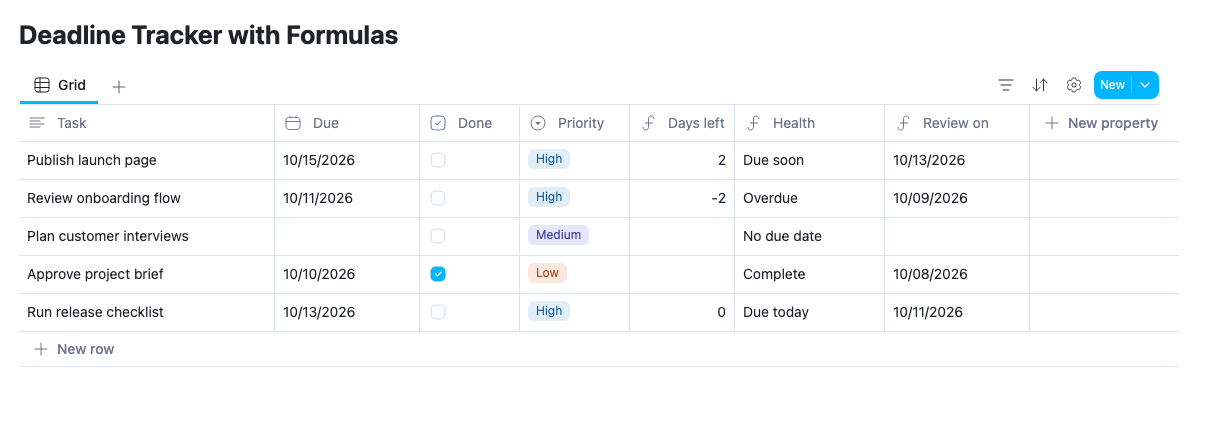
The screenshots use 13 October 2026 in Asia/Singapore. The template uses the real
today(), so its live Days left and Health values change as time passes. Replace the sample Due dates when you duplicate it.To add each calculation, choose New property → Formula, enter the expression, check the preview, and click Done. Name the properties as shown in the table. See the beginner's formula guide for the editor walkthrough.
Calculate the number of days left
Add this expression to Days left:
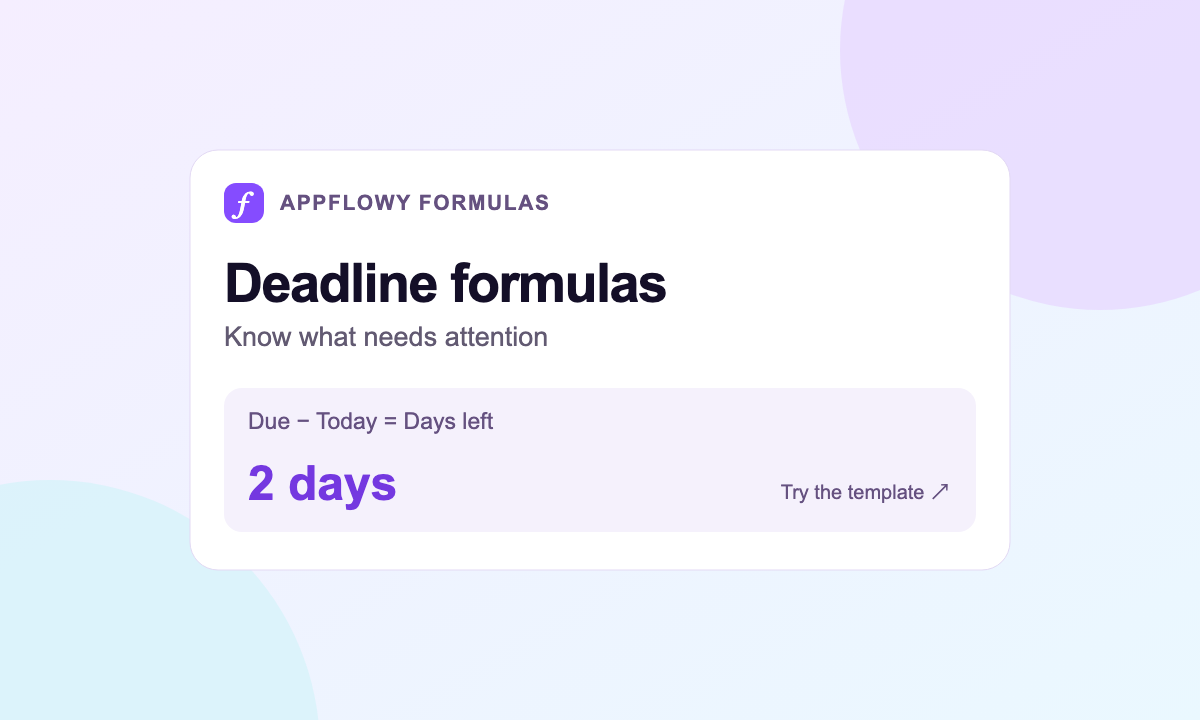
1if(2 prop("Done") or empty(prop("Due")),3 empty(),4 dateBetween(prop("Due"), today(), "days")5)dateBetween() subtracts its second date from its first. Here, that means Due minus today, expressed in days. A future deadline returns a positive number, today returns zero, and a past deadline returns a negative number.The
if() condition leaves the result blank when Done is checked or Due is empty. That keeps finished work out of the countdown and makes an unset date visibly different from a deadline that falls today.On the screenshot's reference date, a task due on 15 October has 2 days left. A task due on 11 October has -2. Checking Done clears that task's Days left result.
Do not reverse the two dates unless you want the opposite sign.
dateBetween(today(), prop("Due"), "days") counts elapsed time relative to Due rather than time remaining until it.Give each task a readable deadline status
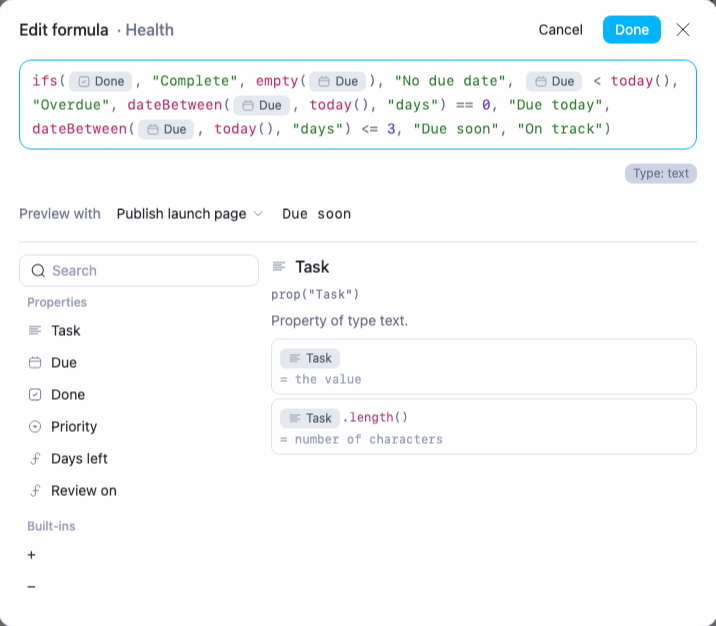
A number is useful for sorting, but a label is easier to scan during a project review. Add this expression to Health:
1ifs(2 prop("Done"),3 "Complete",4 empty(prop("Due")),5 "No due date",6 prop("Due") < today(),7 "Overdue",8 dateBetween(prop("Due"), today(), "days") == 0,9 "Due today",10 dateBetween(prop("Due"), today(), "days") <= 3,11 "Due soon",12 "On track"13)ifs() evaluates the conditions in order and returns the first matching result. This order is part of the workflow:| First condition that matches | Health result |
|---|---|
| Done is checked | Complete |
| Due is missing | No due date |
| Due is before today | Overdue |
| Due is today | Due today |
| Due is within the next three days | Due soon |
| None of the above | On track |
Checking completion first matters. A finished task with an old date should read Complete, not Overdue. Checking for a missing date before making comparisons prevents an unscheduled task from receiving a misleading health label.
Change
3 to 7 if your team reviews deadlines a week ahead. Keep the earlier Overdue and Due today conditions in place so that the wider Due soon window does not absorb them.Calculate a review date before the deadline
Add this expression to Review on:
1if(empty(prop("Due")), empty(), dateSubtract(prop("Due"), 2, "days"))dateSubtract() moves the due date back by two calendar days. A task due on 15 October has a review date of 13 October. If Due is blank, the review date stays blank too.The output remains a date. Turning it into formatted text would be useful in a sentence, but would lose the date result you may want for date-based comparisons.
These are calendar days, so a Monday deadline produces a Saturday review date. If your team only reviews work on business days, use a separately agreed scheduling rule rather than treating this example as a working-day calculator.
Adapt the same pattern to a content calendar
The Content Calendar template works backward from Publish on. It calculates Draft due seven days earlier and Review due two days earlier, while Schedule health checks whether an item is published or overdue.
For Draft due, use:
1if(empty(prop("Publish on")), empty(), dateSubtract(prop("Publish on"), 7, "days"))For Review due, use the same expression with
2 instead of 7. Moving Publish on recalculates both dates, so the review schedule stays connected to the publishing plan.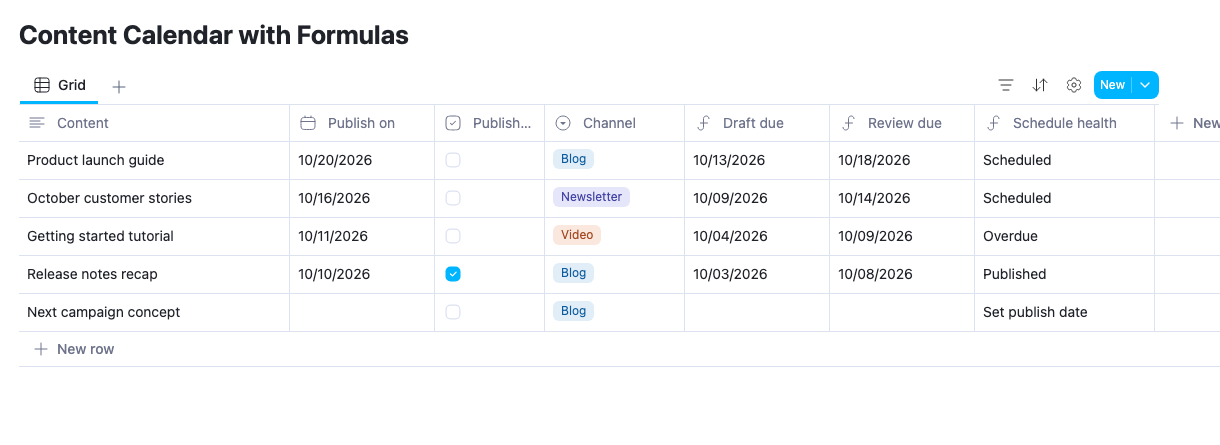
The template keeps Published as a checkbox that a person updates. Schedule health displays the result of that input; the formula does not publish content or change the checkbox automatically.
Check these deadline edge cases
An item has no Due date. Days left and Review on should be blank, while Health should say No due date.
An item is complete but its deadline has passed. Health should say Complete. This is why completion is the first condition.
A deadline is today. Days left should be zero and Health should say Due today, not Overdue.
A date includes a time.
today() is intended for the current date; now() includes the current time. Decide whether the item becomes overdue at the start of a day or after its exact deadline before changing the formula.A screenshot differs from your template. Date-based formulas depend on when you open the database. Compare against your current date and the stored Due value.
Run a more useful deadline review
Start with the Deadline Tracker, set realistic due dates, and review records marked Overdue or Due soon. Use the Content Calendar when several preparation dates depend on one publishing date.
To add a second view of delivery health, build a sprint progress bar. A deadline signal shows urgency; a completion ratio shows how much of the planned work is finished.