A RICE prioritization formula gives a product team a consistent way to compare feature ideas. In AppFlowy, four number properties can produce a score for each initiative, while two additional formulas highlight uncertain estimates and work that still needs sizing.
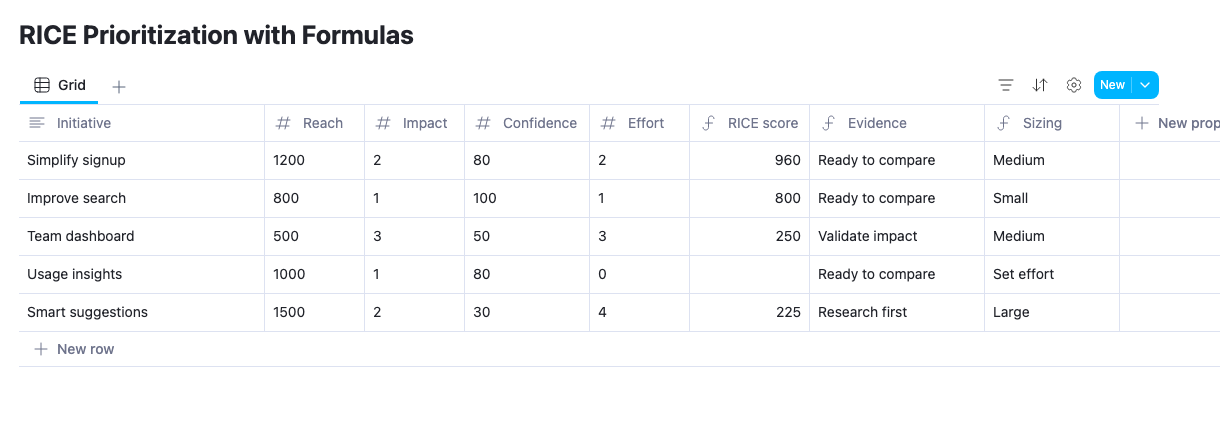
The useful result is a backlog where you can inspect both the score and the assumptions behind it. This tutorial builds RICE score, Evidence, and Sizing, with five sample initiatives you can change and compare.
Open the RICE Prioritization template and choose Start with this template to try the examples. When you are ready to track selected work, use the companion Sprint Progress template.
What is the RICE formula?
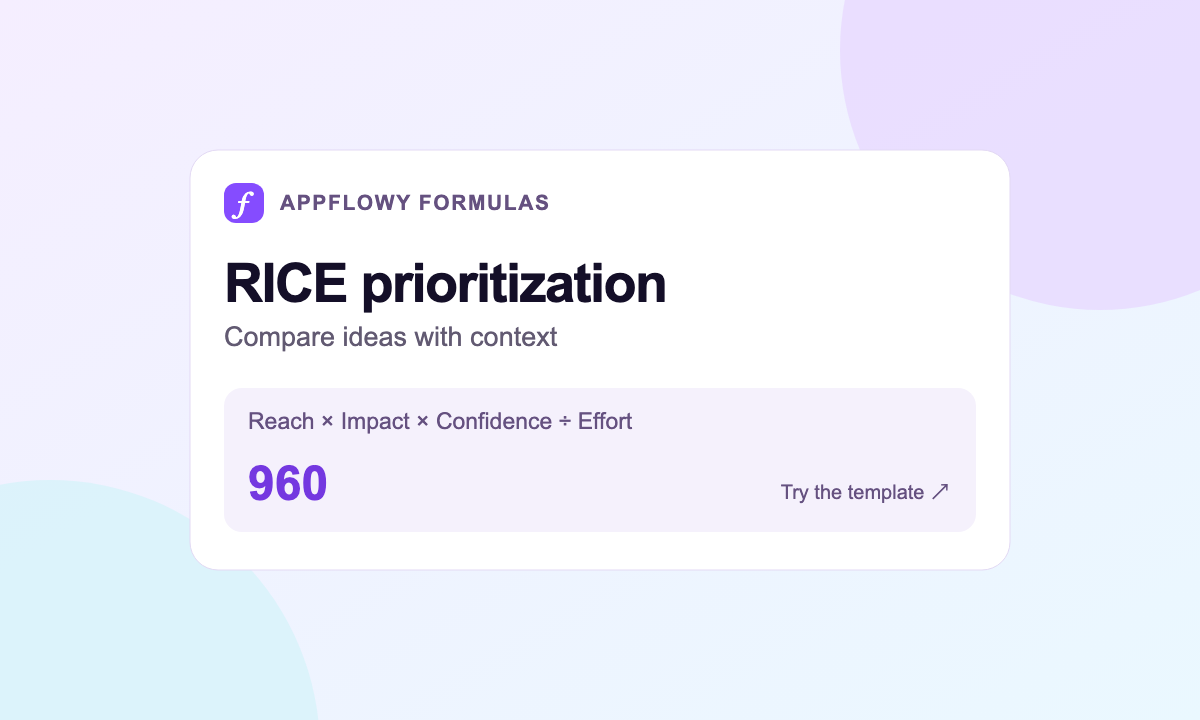
RICE combines Reach × Impact × Confidence ÷ Effort. Reach estimates how many people or events an initiative affects in a defined period. Impact estimates the effect on each one. Confidence accounts for uncertainty, and Effort estimates the work required. The framework comes from Intercom's RICE prioritization method.
For this template, store Confidence as a number from 0 to 100 and divide it by 100 in the formula. A confidence value of 80 therefore contributes
0.8, not 80, to the calculation.The sample uses quarterly reach and person-months of effort. Choose a consistent period and effort unit for your own backlog before comparing scores.
Create the input properties
| Property | Type | Sample value for Simplify signup |
|---|---|---|
| Initiative | Text | Simplify signup |
| Reach | Numbers | 1200 |
| Impact | Numbers | 2 |
| Confidence | Numbers | 80 |
| Effort | Numbers | 2 |
Enter all four estimates for each initiative. The sample treats Impact as a relative multiplier; for example, 2 contributes twice as much as 1 when everything else stays equal.
Keep Confidence in a normal number format so that entering 80 visibly means 80 on the agreed 0–100 scale. If you instead store a ratio such as
0.8, remove the division by 100 from the score formula. Mixing these conventions reduces the result by a factor of 100.Use the row's page to record the estimate's source: a usage report for Reach, research notes for Impact, and the scope behind Effort. The formula can recompute numbers, but those notes explain whether the numbers deserve trust.
Calculate the RICE score
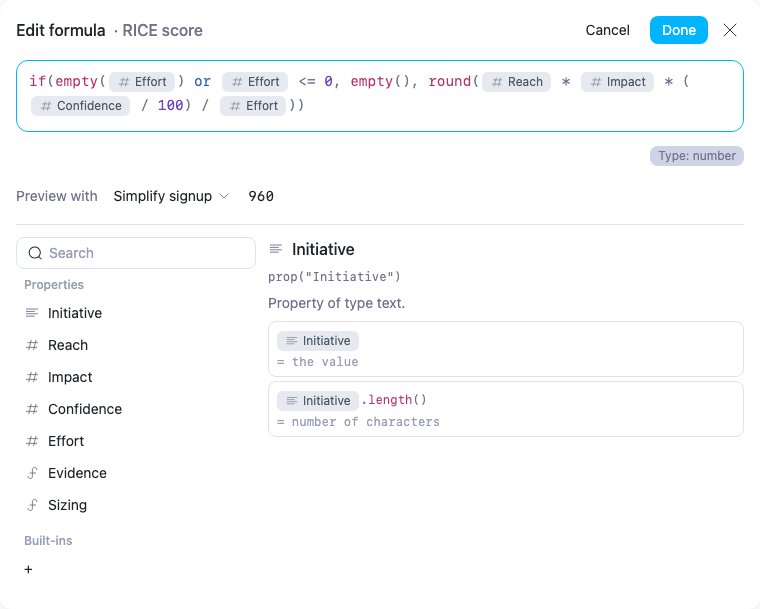
Create a Formula property named RICE score and enter:
1if(2 empty(prop("Effort")) or prop("Effort") <= 0,3 empty(),4 round(5 prop("Reach") * prop("Impact") * (prop("Confidence") / 100) / prop("Effort")6 )7)The condition checks for missing, zero, or negative Effort before division. When Effort is invalid, the result stays blank. Otherwise, the expression multiplies the inputs and rounds the score to a whole number.
For Simplify signup, the arithmetic is:
11200 × 2 × (80 ÷ 100) ÷ 2 = 960The result is a number, so you can sort RICE score from highest to lowest. It is a relative planning score, not a revenue forecast or a promised delivery outcome.
If two close scores round to the same integer, remove
round() for a more detailed comparison. Additional decimal places do not make the underlying estimates more certain; use them only when they help your team distinguish the inputs.Make uncertainty visible
A large score can come from ambitious assumptions. Add an Evidence Formula property to give Confidence a readable label:
1ifs(2 prop("Confidence") < 0 or prop("Confidence") > 100,3 "Check confidence",4 prop("Confidence") >= 80,5 "Ready to compare",6 prop("Confidence") >= 50,7 "Validate impact",8 "Research first"9)The template uses these editable labels:
| Confidence input | Evidence label |
|---|---|
| Below 0 or above 100 | Check confidence |
| 80–100 | Ready to compare |
| 50–79 | Validate impact |
| Below 50 | Research first |
These labels are a review convention for this example. Ready to compare means the input meets the chosen confidence threshold; it does not mean a feature is approved or guaranteed to succeed.
Correct any input marked Check confidence before using its score. This label flags an out-of-range value; it does not edit the Confidence property or suppress the numeric score. Keep Reach and Impact nonnegative, and enter every estimate before ranking the row.
Flag work that still needs sizing
Create Sizing with this expression:
1ifs(2 empty(prop("Effort")) or prop("Effort") <= 0,3 "Set effort",4 prop("Effort") <= 1,5 "Small",6 prop("Effort") <= 3,7 "Medium",8 "Large"9)Missing or nonpositive Effort returns Set effort. The other rows are grouped as Small at one person-month or less, Medium up to three, and Large above three.
These size labels help a planning discussion without replacing the numeric estimate. Change the thresholds if your effort unit or typical initiative size is different.
The Usage insights sample has Effort set to zero. Its RICE score stays blank and Sizing says Set effort. Leaving it blank is preferable to giving an unsized idea an artificially high score through a zero denominator.
Compare the sample backlog
| Initiative | RICE score | Evidence | Sizing |
|---|---|---|---|
| Simplify signup | 960 | Ready to compare | Medium |
| Improve search | 800 | Ready to compare | Small |
| Team dashboard | 250 | Validate impact | Medium |
| Usage insights | Blank | Ready to compare | Set effort |
| Smart suggestions | 225 | Research first | Large |
The table suggests a discussion order, not an automatic commitment. Simplify signup has the largest score, but a dependency, customer commitment, or available team capacity may change when it can start. Record those reasons alongside the score so the eventual decision stays understandable.
Try changing Simplify signup's Confidence from 80 to 50. Its score falls from 960 to 600, and Evidence becomes Validate impact. Improve search remains at 800. You have made the uncertainty visible without changing either initiative's description.
Now change Usage insights' Effort from 0 to 2. It receives a score of 400 and a Medium sizing label. Both experiments show which assumptions drive the ranking.
Use the score during backlog review
Review the input estimates before you sort. Make sure Reach covers the same time period, Effort uses the same unit, and Confidence follows the same scale. Separate unsized items so a blank score is not mistaken for low priority.
Discuss the largest changes since the previous review. A higher score could reflect stronger evidence, increased reach, or a smaller scope estimate. Each reason calls for a different conversation.
Keep the score numeric and its explanations nearby. Avoid folding everything into a text sentence such as “High priority: 960” if you want reliable numeric ordering. The separate Evidence and Sizing properties provide readable context without changing the score's type.
Move selected ideas into delivery
Use the RICE Prioritization template to compare potential work, then use the Sprint Progress template to track what your team commits to completing.
Follow the sprint progress bar tutorial for completion ratios and blocked-work labels. If you want to understand the syntax behind either setup, start with the AppFlowy database formulas guide.